
Two updates rolled out in January that change how you interact with MyStory. Version 1.28 introduces mixed theme mode, letting you write on a bright canvas while keeping the surrounding interface dark. A follow-up release brings a completely redesigned label dialog, auto indent for professional book formatting, and a cleaner app menu with better access to settings.
Mixed Theme Mode: The Best of Both Worlds
Full light mode works well in bright environments, but some writers find it too harsh for extended sessions. Mixed theme mode gives you a bright writing area with dark navigation, menus, and sidebars. You get the readability of a light editor with the comfortable contrast of a dark interface around it.
This was built on direct feedback from authors who liked the idea of light mode but found the full interface too bright, especially on web and mobile where screen glare is more noticeable.
Watch how mixed theme mode keeps the sidebar and header dark while giving you a bright, comfortable writing area.
Theme Flexibility
You can switch between full light, full dark, or mixed mode at any time. Write in a coffee shop with natural light without straining your eyes. Work late at night while maintaining clear contrast between your writing area and the rest of the app. Adapt to different sessions throughout your day.
The setting lives in your app preferences and syncs across devices, so your theme follows you regardless of which device you pick up.
Redesigned Label Dialog
Labels help you organize scenes by marking them with tags like Needs cleanup, Todo, or tracking story elements like character actions and plot twists. Until now, managing labels meant leaving your scene and opening a separate settings view.
The new dialog changes that. You can add, remove, edit, and filter labels all in one place without leaving your current view. When your collection grows, use the filter to find what you need. If you spot a typo, fix it right there in the dialog.
See how the new label dialog lets you manage labels without leaving your scene.
Cleaner App Menu
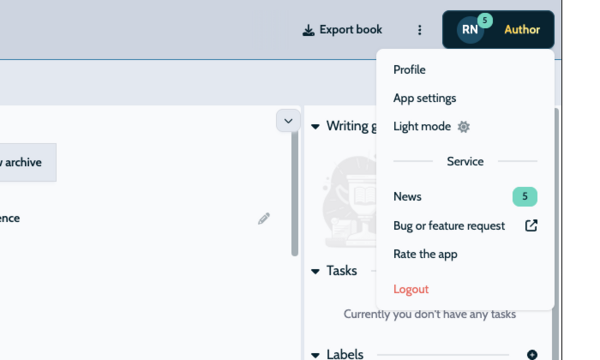
The top of your app is less cluttered now. App updates, news, and the theme switcher have moved into the profile menu, accessible from anywhere in the app. Previously you could only change between dark and light mode when viewing a book. Now you can switch themes from any screen.
Auto Indent for Book Formatting
When you write longer paragraphs, the second and subsequent lines now indent automatically while the first line stays flush left. This is the same formatting standard used in published books for decades because it helps the reader's eyes flow naturally from line to line.
You can enable or disable it in the editor typography settings, giving you full control over how your writing appears on screen.
Additional Improvements
The sync icon replaces the traditional floppy disk save button and stays visible on mobile devices, so you always know when changes are being saved. The standard Mod+S keyboard shortcut now works for instant scene saving across all platforms.
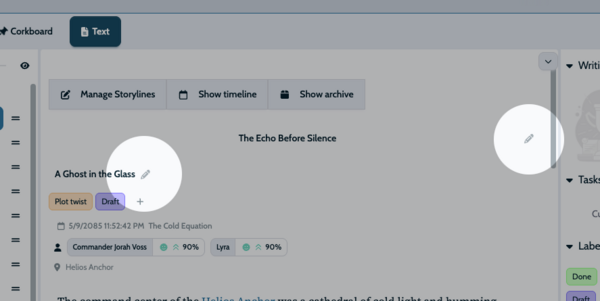
New edit icons appear next to chapter and scene titles in workspaces, making it clear where to click to edit details. Corkboard cards now switch to proper dark colors in dark mode for better text readability. And scene reordering in the Outliner now reflects more reliably in the main workspace.
Update to the latest version to try mixed theme mode, the new label dialog, and auto indent. Choose the theme that fits your environment, organize your scenes with a better labeling system, and let your writing look the part with professional formatting.